
How to Turn Off Your VPN: Step-by-Step Guides
VPNs are designed to protect your privacy around the clock. However, there are times when you might need to access local websites, connect to a trusted network, or troubleshoot specific apps without the interference of a VPN. Here’s how to turn off your VPN on all major platforms, including Windows, macOS, Linux, Android, and iOS. We’ll also discuss the potential risks of turning your VPN off and explore smarter alternatives that allow you to address issues without fully disconnecting.
How to Turn Off Your VPN Using Its App
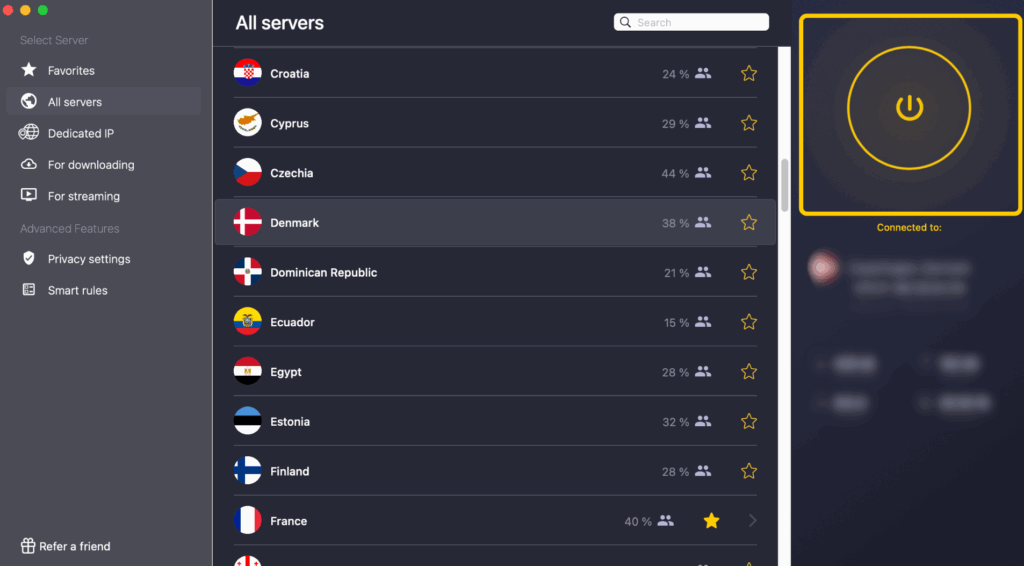
Most VPNs allow you to disconnect directly through their applications. Here’s a brief guide using CyberGhost VPN as an example:
- Open the VPN app on your device.
- Check if the VPN is connected. The app usually indicates your current server and displays an ON/OFF switch.
- Disconnect using the ON/OFF switch and wait a few seconds. The switch should change to show that the VPN is off, typically turning gray or showing “Disconnected.”
How to Disable a VPN on Windows
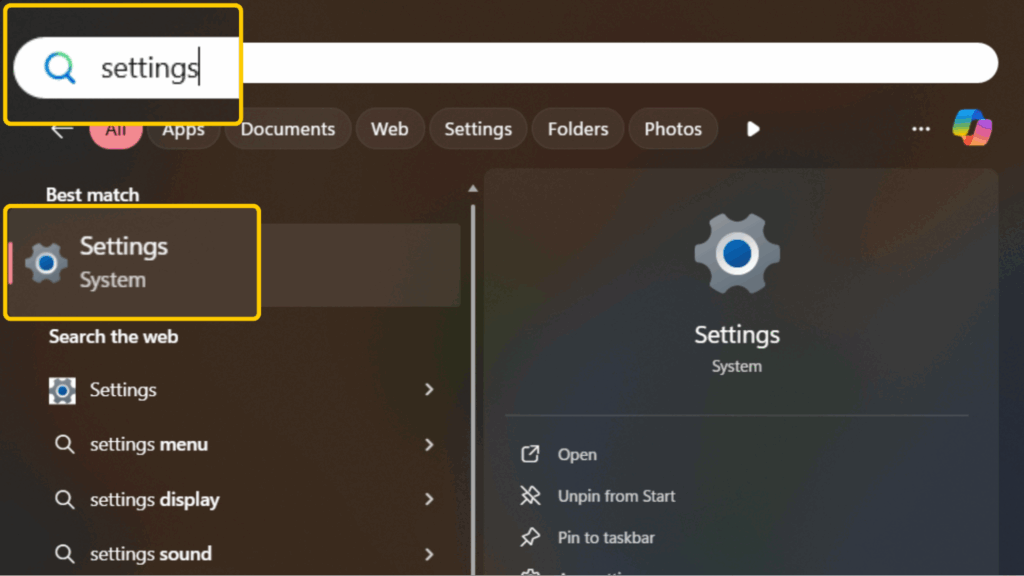
- Open the Start menu.
- Type “settings” and open the Settings app.
- Navigate to Network & Internet > VPN.
- Select the connection you wish to disable and click Disconnect.
How to Disable a VPN on macOS
- Click the Apple icon in the top-left corner of your screen.
- Open System Settings.
- Select VPN and find the connection you want to disable.
- Use the toggle to turn off the VPN connection.

How to Disable a VPN on Linux
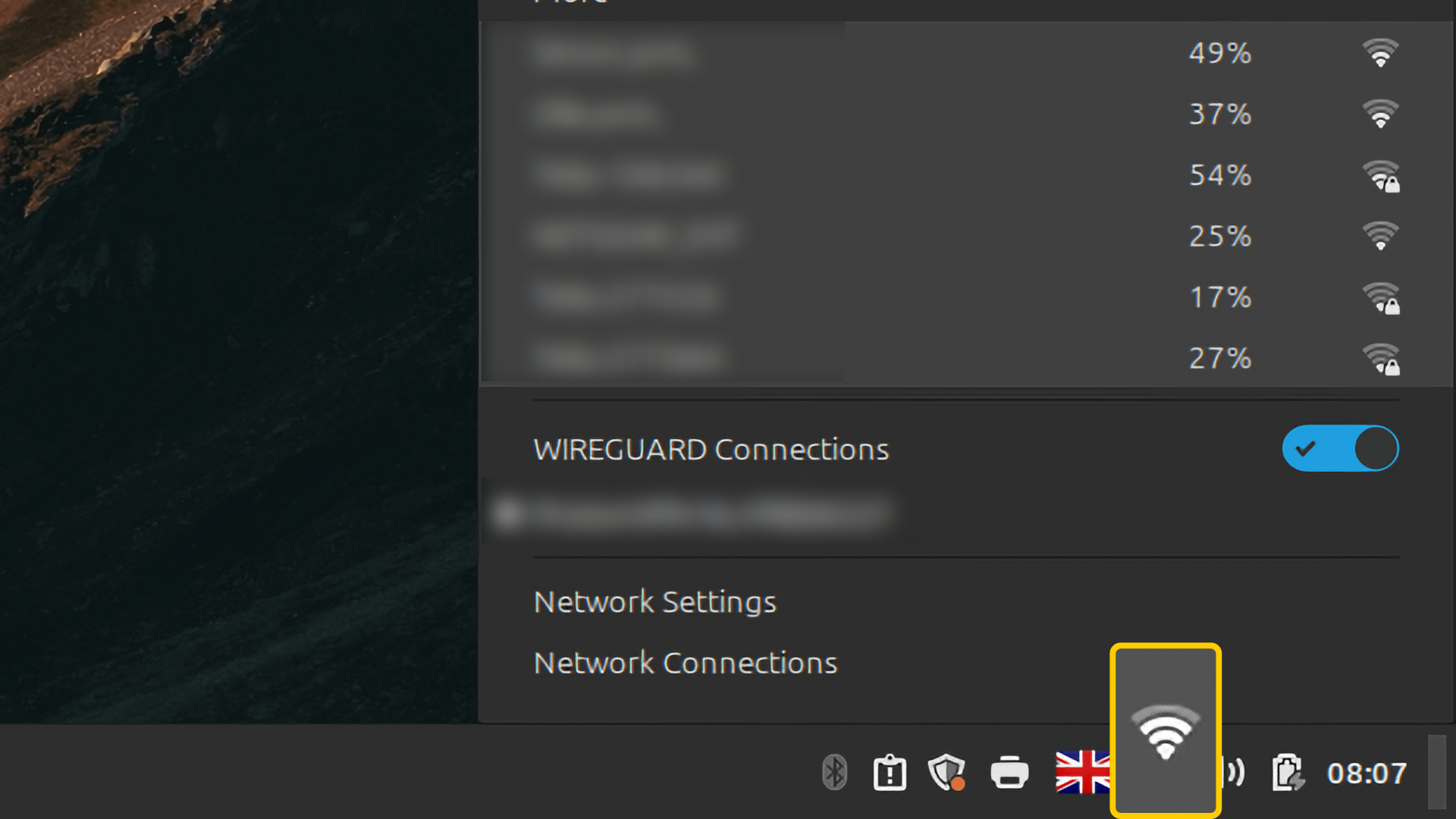
- Click the network icon in the bottom-right corner of your screen.
- Select the VPN connection you wish to turn off.
- Use the toggle switch to disconnect.
How to Disable a VPN on Android
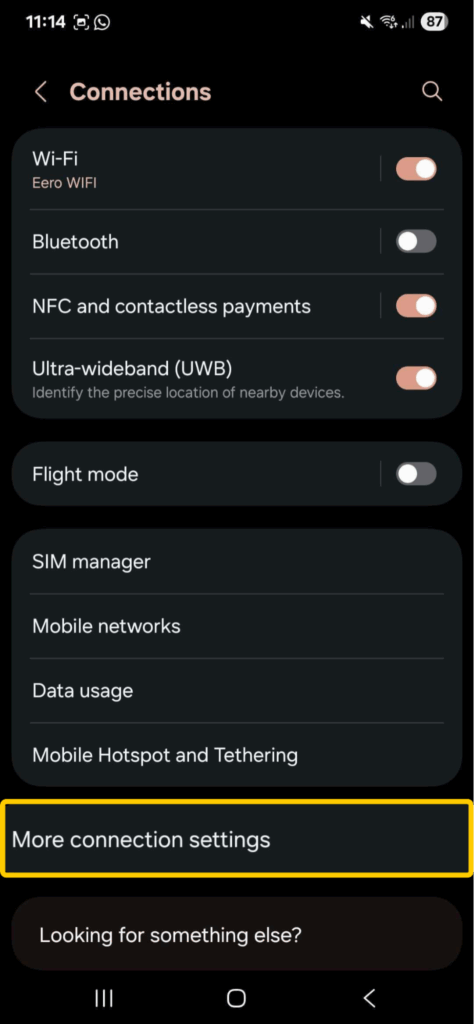
- Open your phone’s Settings app.
- Navigate to Connections or Network & Internet.
- Find the VPN settings.
- Tap the VPN connection and select Disconnect when prompted.
How to Disable a VPN on iPhone and iPad
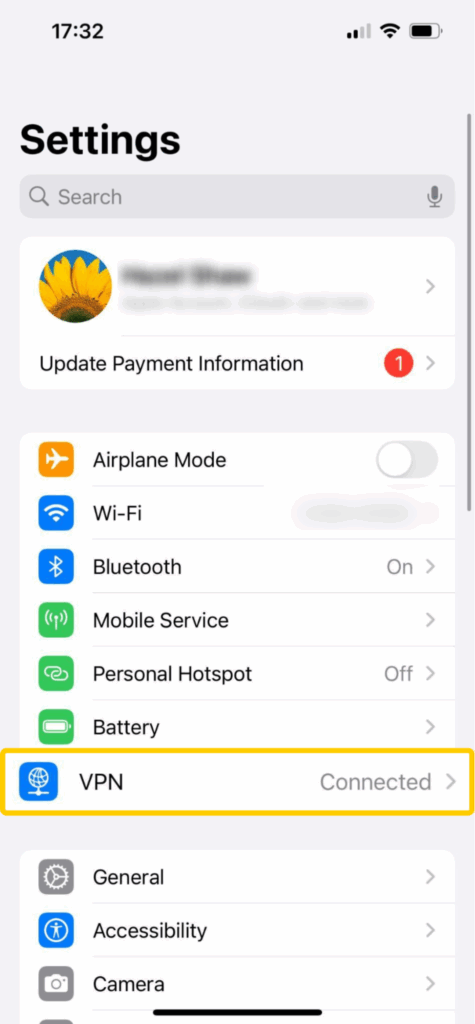
- Open the Settings app and tap VPN.
- Check the VPN Status; it’s usually green when connected.
- Flip the switch to disconnect from the VPN.
How to Disable a VPN in Your Browser
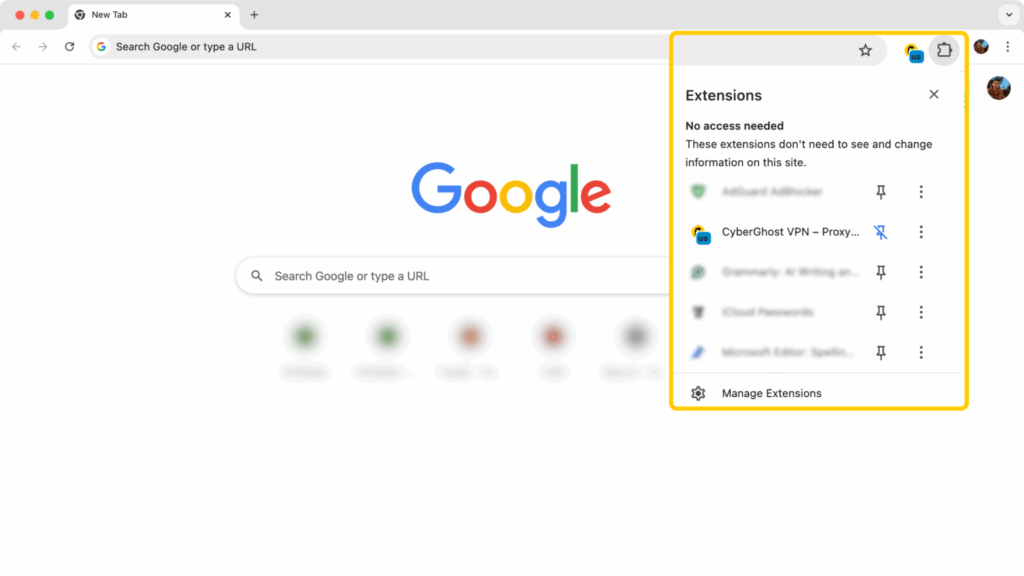
- Locate your VPN extension in Chrome, Edge, or Firefox.
- Click the VPN add-on’s icon to open it.
- Toggle the VPN power button off to disconnect.
How to Disable a VPN on a Smart TV
If you have a VPN app installed on your Smart TV, turning it off follows similar in-app instructions as provided above. If you’re using SmartDNS, you can disable it like this:
- Go to your TV’s network settings.
- Select the network you currently use.
- Find the DNS Server settings and switch back to Automatic.
- Save your changes.
How to Disable a VPN on a Router
- Find your router’s private IP address (often 192.168.1.1 or 192.168.0.1).
- Open your browser and enter the router’s IP address.
- Navigate to the VPN settings.
- Use the ON/OFF toggle to stop any active VPN connections.
Why You Might Want to Turn Off a VPN
While VPNs greatly enhance your security by encrypting your data and hiding your IP address, there are specific scenarios where temporarily disabling your VPN can be beneficial:
-
Access Local Content: Some local websites or banking apps may not function properly with a VPN. Turning it off ensures you can access necessary local services.
-
Troubleshoot Internet Issues: If certain apps or websites are not functioning, disabling your VPN can help determine if it’s the VPN causing the problems.
-
Speed Concerns: If your connection is unusually slow, turning off the VPN may improve your speed, especially if you’re connected to a distant server.
-
Trusted Networks: If you trust your Wi-Fi network, you may choose to disable the VPN for ease of use. However, remember that your internet provider can still see your browsing activity.
-
Battery or Processing Power: Temporarily shutting down your VPN can save battery and processing power.
-
Compliance with Local Laws: In countries where VPN use is restricted, disabling it may be necessary to comply with local regulations.
What Happens When You Turn Off Your VPN?
When you disable your VPN, several changes occur:
-
Visibility of Your IP Address: Websites will see your actual IP address, which can expose your location.
-
Lack of Encryption: Your internet traffic will no longer be encrypted, making it easier for hackers or your ISP to track your online activities.
-
Potential Changes in Content Access: Websites may adjust the content available to you based on your new visible location.
Safe Alternatives to Turning Off Your VPN
If you’re considering turning off your VPN, exploring alternatives is wise:
-
Split Tunneling: This feature allows you to choose which apps connect through the VPN and which connect directly to the internet, offering flexibility and security.
-
Switching Servers: Sometimes, server congestion can slow down your connection. Switching to a different server can improve your experience without needing to disconnect.
-
Changing VPN Protocols: Different protocols offer varying benefits; experimenting with these can enhance your connection speed and stability.
Bottom Line
Turning off your VPN comes with both advantages and risks. If you find yourself needing to disconnect, weigh your options carefully and consider safer alternatives to ensure you maintain your online security. Various VPNs, such as CyberGhost, offer features like split tunneling, different server options, and robust encryption to keep your digital activities secure.